---
title: Troubleshooting
description: troubleshooting
---
[Skip to content](https://support.webox.com/en/kb/troubleshoot#main-content)
English
Show submenu for translations

Open main navigation
Close main navigation
- English
Show submenu for translations
- Contact us
Contact us
How can we help you?
- There are no suggestions because the search field is empty.
1. [WeBox Knowledge Base](https://support.webox.com/en/kb)
2. [Support](https://support.webox.com/en/kb/support)
# Troubleshooting
### Overview
---
This troubleshooting guide helps you resolve common issues when using WeBox's service. Whether you're having trouble logging in, finding the right meal, checking out, or tracking your delivery, we've got you covered with step-by-step solutions.
Most issues can be resolved in under 5 minutes. If you don't find your solution here, contact our support team at **support@webox.com** or call **(408) 685-2000** — typical response time is under 5 minutes.
---
### Account & Login Issues
---
### I can’t log in to my account
**Symptoms:**
- Login page shows “Invalid email or password”
- Unable to access your account
- Password not working
**Solutions:**
Step 1: Verify Your Email Address
Make sure you’re using the correct email address:
- Use your **company email** address (the one you signed up with)
- Check for typos in the email field
- Email addresses are case-insensitive, but check your domain is correct
Step 2: Reset Your Password
If you’ve forgotten your password:
1. Click **“Reset my password”** on the login page
2. Enter your email address
3. Check your email inbox for the reset link (check spam/junk folders too)
4. Click the link and create a new password
5. Try logging in again with your new password
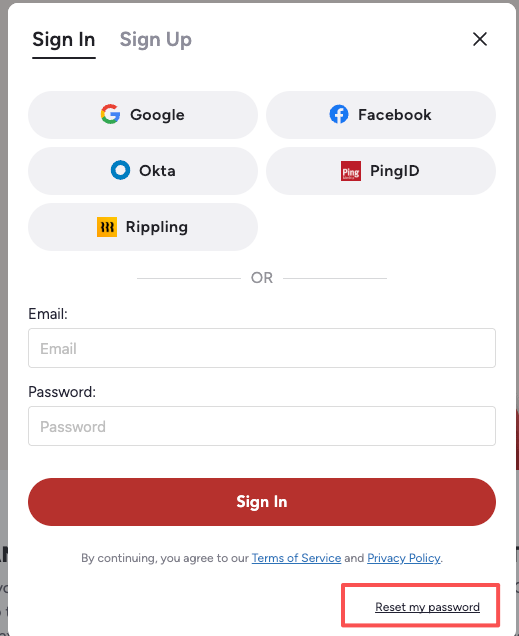
**Note:** If the reset link doesn’t work, request a new one.
Step 3: Try Alternative Login Methods
If password reset doesn’t work, try logging in with alternative methods you may have used during signup:
- **Google** — Click “Sign in with Google”
- **Facebook** — Click “Sign in with Facebook”
- **Okta** — Use your company’s Okta SSO
- **PingID** — Use your company’s PingID SSO
- **Rippling** — Use your company’s Rippling SSO
Step 4: Contact Support
If none of the above work:
- **Email:** [support@webox.com](mailto:support@webox.com) with subject “Login Issue - \[Your Email\]”
- **Phone:** (408) 685-2000
- Include: Your full name, company name, and email address used for signup
---
#### I didn’t receive the verification email during signup
**Symptoms:**
- Signed up but no verification code arrived
- Cannot complete registration
**Solutions:**
Step 1: Check Spam/Junk Folders
The verification email might have been filtered:
1. Open your email client
2. Check **Spam**, **Junk**, or **Promotions** folders
3. Search for emails from WeBox with verification code
Step 2: Verify Email Address Correctness
1. Go back to the signup page
2. Double-check your email address for typos
3. Make sure you’re using your **company email** (not personal email)
Step 3: Request a New Verification Code
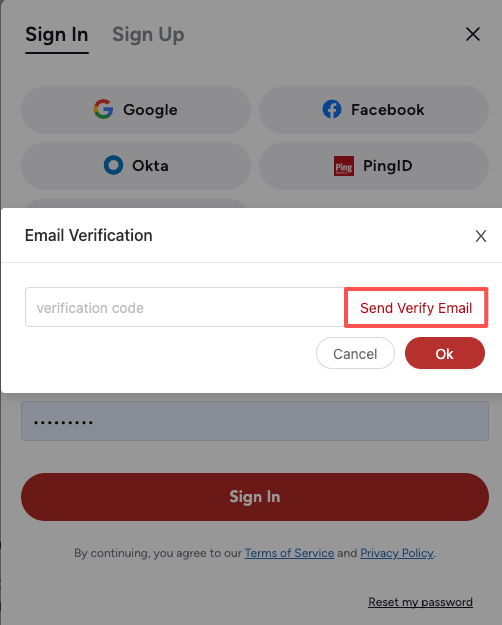
1. On the verification screen, Click **“Send Verify Email”** again.
2. Click to request a new 6-digit code
3. Wait 1-2 minutes and check your inbox again
Step 4: Whitelist WeBox Emails
If you still don’t receive emails:
1. Contact your IT department
2. Ask them to whitelist WeBox email domain: `@webox.com`
3. Try signing up again after whitelist is added
**Still stuck?** Contact [support@webox.com](mailto:support@webox.com) with your company email address.
---
#### My account shows the wrong company
**Symptoms:**
- Logged in but see a different company name
- No access to your team’s meal program
- Budget/allowance doesn’t appear
**Solutions:**
**Understanding Company Detection**
WeBox automatically assigns you to a company based on your **email domain**:
- `john@acme.com` → Joins “Acme” company
- `jane@startup.io` → Joins “Startup” company
Step 1: Verify Your Email Domain
1. Check if you signed up with your correct company email
2. If you used a personal email (@gmail.com, @yahoo.com), that’s the issue
3. You need to create a new account with your company email
Step 2: Request Company Transfer
If you signed up with the correct email but see wrong company:
1. Email **[support@webox.com](mailto:support@webox.com)** with subject “Company Transfer Request”
2. Include:
- Your current account email
- Company you’re seeing now
- Company you should be in
- Your manager’s email for verification
---
#### I can’t access admin features
**Symptoms:**
- No “Admin Dashboard” or “Corporate Dashboard” in sidebar
- Cannot view team orders or invoices
- Missing admin permissions
**Solutions:**
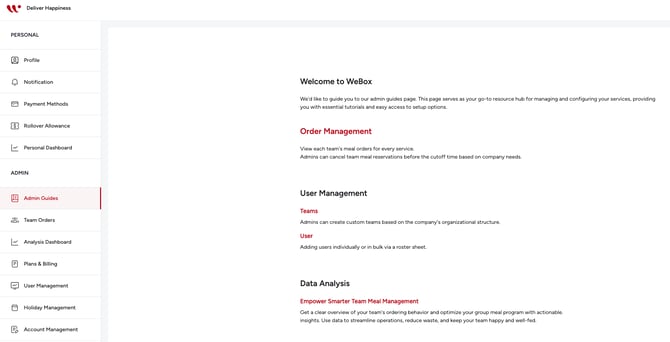
Step 1: Verify Admin Status
Admin access is not automatic. To get admin permissions:
1. Check with your current company admin or office manager
2. Ask them to add you as an admin in the system
3. Or email **[support@webox.com](mailto:support@webox.com)** to request admin access
**Who can be an admin:**
- Office managers
- HR administrators
- Finance/accounting team members
- Team leads (with approval)
Step 2: Request Admin Access
Email **[support@webox.com](mailto:support@webox.com)** with:
- Subject: “Admin Access Request”
- Your full name and email
- Company name
- Role/title
- Reason for needing admin access
- Manager’s name and email for approval
---
### Menu & Browsing Issues
---
### The menu is not loading or showing “No meals available”
**Symptoms:**
- Blank page or loading spinner that never completes
- “No meals available for this date” message
- Menu shows zero dishes
**Solutions:**
Step 1: Check Your Delivery Date and Time
The menu is dynamic based on date and meal period:
1. Look at the top navigation bar
2. Verify the **date** is correct (today or a future date, not a past date)
3. Verify the **meal period** shows “Lunch” or “Dinner” correctly
4. If the date is too far in future (\>7 days), menu may not be available yet
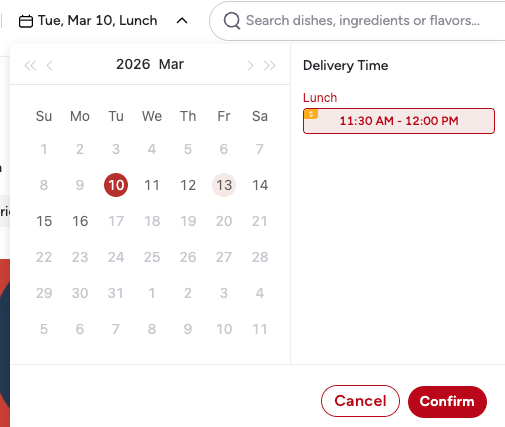
**Fix:** Click the date to open calendar and select a valid date (today to 7 days ahead).
Step 2: Check Delivery Address
Menu availability depends on your delivery location:
1. Click the **address** in the top navigation
2. Verify your office location is selected
3. If no address is set, select your company’s delivery location
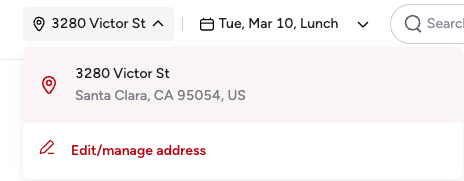
**Fix:** Select your correct office address from the dropdown.
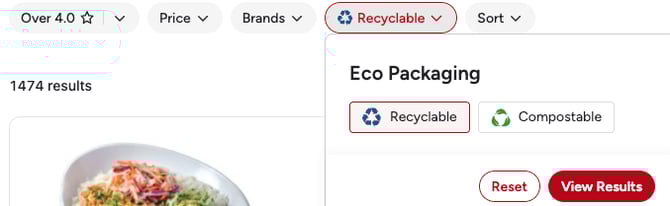
Step 3: Clear Filters
You might have filters applied that exclude all dishes:
1. Look for active filter badges below the category tabs
2. Click **“Reset”** or **“Clear all filters”** button
3. Or manually remove filters one by one
Step 4: Check Office Closure/Holiday Settings
Your company may have closed ordering for certain dates:
1. Try selecting a different date
2. If multiple dates show no menu, contact your company admin
3. Admin may have scheduled office closures or holidays
**When this happens:**
- Company holidays (e.g., Christmas, Thanksgiving)
- Office closed for events
- Budget period not yet started
**Fix:** Contact your company admin or check company calendar.
Step 5: Browser Troubleshooting
If menu still won’t load:
1. **Refresh the page** — Press Ctrl+R (Windows) or Cmd+R (Mac)
2. **Clear browser cache:**
- Chrome: Ctrl+Shift+Delete → Clear cache
- Safari: Cmd+Option+E
- Firefox: Ctrl+Shift+Delete → Clear cache
3. **Try a different browser** — Chrome, Safari, Firefox, or Edge
4. **Disable browser extensions** — Ad blockers may interfere with menu loading
Step 6: Network Issues
1. Check your internet connection
2. If using corporate VPN, verify [webox.com](http://webox.com/) is whitelisted
3. Ask IT to allow access to `webox.com` and `*.webox.com`
**Still not working?** Contact [support@webox.com](mailto:support@webox.com) with:Screenshot of the error
- Your browser and version
- Date and time you’re trying to access
---
#### Search is not returning any results
**Symptoms:**
- Searching for a dish returns “No results found”
- Know the dish exists but can’t find it
- Search seems broken
**Solutions:**
Step 1: Check Your Search Terms
**Common search mistakes:**
- Misspelled dish names
- Too specific (e.g., “grilled chicken caesar salad with light dressing” → try “caesar salad”)
- Using full sentences instead of keywords
**Pro tip:** Start with broader terms, then narrow down with filters.
Step 2: Verify Filters Aren’t Too Restrictive
Active filters might be excluding your search results:
1. Remove all filters (click “Reset” or “Clear all”)
2. Search again
3. Then reapply filters one at a time
**Example:** Searching for “beef tacos” with “Vegan” filter = 0 results (beef isn’t vegan).
Step 3: Check Date and Meal Period
Dishes may only be available for specific meals:
1. Some dishes are lunch-only or dinner-only
2. Toggle between **Lunch** and **Dinner** tabs
3. Try searching in both meal periods
Step 4: Brand May Not Be Available Today
WeBox has a rotating menu with different selections available each day:
1. The dish may not be available on the selected date
2. Try selecting a different date (tomorrow or next week)
3. Or use category browsing instead of search
**Alternative:** Browse by cuisine category (e.g., click “Japanese” tab) instead of searching.
**Still can’t find it?** Email [support@webox.com](mailto:support@webox.com) with the dish name and brand — they can tell you when it’s next available.
---
#### I can’t see my dietary preferences applied to the menu
**Symptoms:**
- Set dietary preferences but still seeing restricted items
- Allergen warnings not showing
- Menu not filtered correctly
**Solutions:**
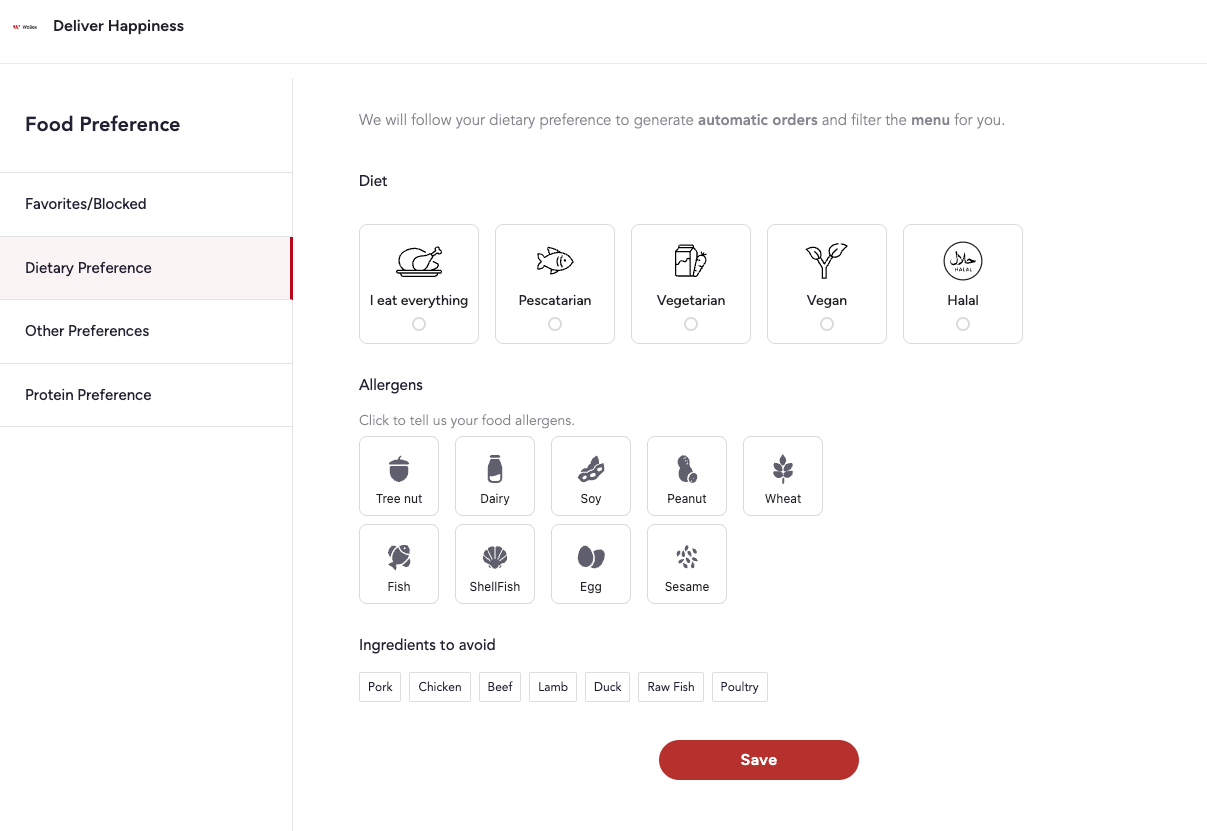
Step 1: Verify Preferences Are Saved
1. Click **“Account”** in the left sidebar
2. Select **"Food Preference"**
3. Verify your selections:
- **Dietary Type:** Vegetarian, Vegan, Gluten-Free, etc.
- **Allergens:** Nuts, Dairy, Shellfish, etc.
- **Avoid Ingredients:** Specific items you don’t want
4. If incorrect, update and click **"Save"**
Step 2: Understand Preference vs. Filter
**Important distinction:**
- **Food Preferences** (in Account) — Personalize recommendations and add allergen warnings
- **Menu Filters** (on menu page) — Actively hide dishes from view
**Food preferences do NOT automatically hide dishes** — they only:
- Show warning icons on restricted items
- Prioritize allowed items in recommendations
- Alert you at checkout if ordering allergens
**To actively hide dishes:**
1. Use the **filter button** on the menu page
2. Select dietary restrictions
3. Only matching dishes will display
Step 3: Reset and Reapply Filters
If filters seem broken:
1. Click **“Reset”** on the menu page filter panel
2. This resets filters to match your account dietary settings
3. Or manually reselect your dietary needs in the filter
Step 4: Allergen Warnings May Still Appear
Even with preferences set, you can still see and order allergen-containing dishes:
- **By design** — WeBox shows warnings but doesn’t block orders
- You’ll see a ⚠️ icon on dishes containing your allergens
- System will warn you again at checkout
**Why?** Sometimes users want to order for others or make exceptions.
**To completely hide allergen dishes:** Use menu filters instead of account preferences.
---
### Cart & Checkout Issues
---
#### I can’t checkout or checkout button is not working
**Symptoms:**
- Checkout button is not responding
- Error message prevents checkout
- Stuck on cart page
**Solutions:**
Step 1: Verify Cart Has Items
Obvious but easy to miss:
- Cart must have at least 1 item to checkout
- Scroll down to verify items are listed
Step 2: Check Budget Limit Exceeded
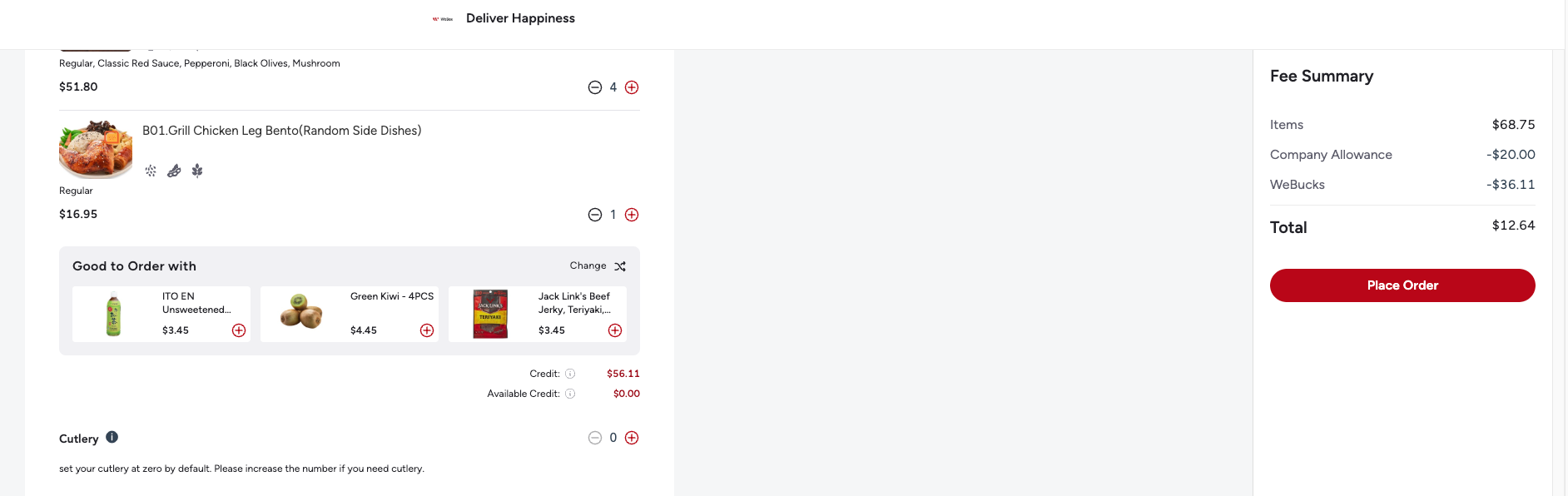
If your order exceeds your allowance and you have no payment method, you may see an error about needing to add payment.
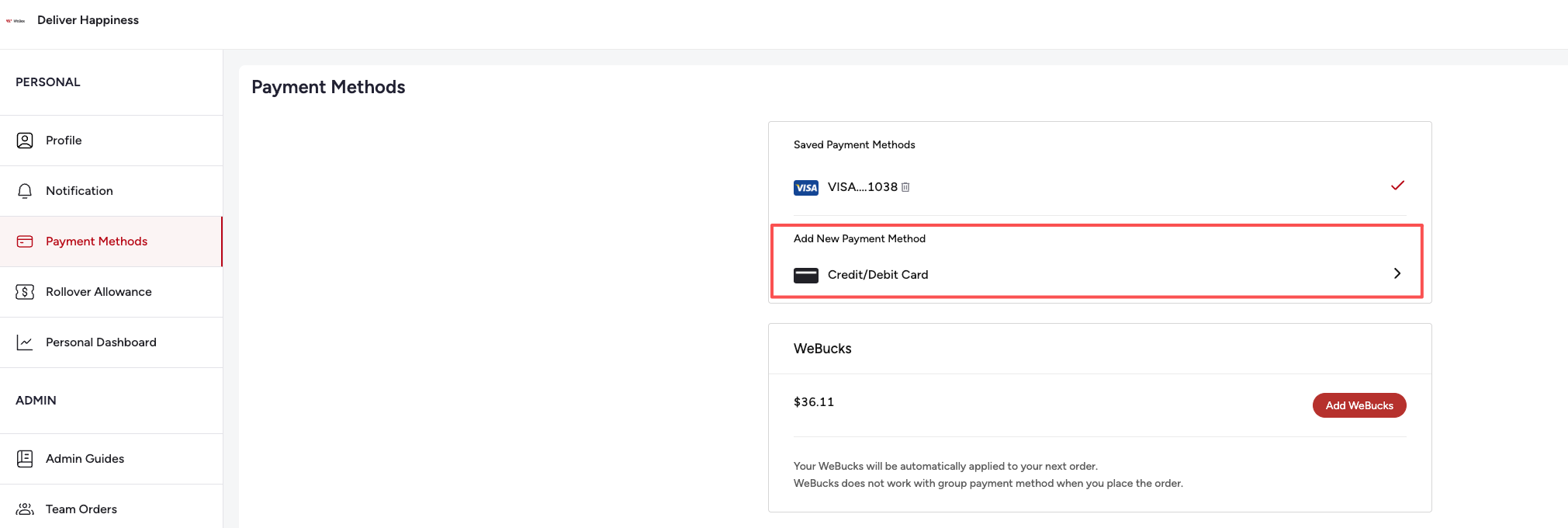
**Fix Option A — Add Payment Method:**
1. Click **“Add Payment Method”** in the error message
2. Or go to **Account → Payment Method**
3. Add a credit/debit card
4. Return to cart and checkout
**Fix Option B — Reduce Order Total:**
1. Remove items or choose cheaper dishes
2. Keep order within your allowance limit
3. Your budget is shown in the green box at checkout
Step 3: Cutoff Time Passed
If it’s after **10:00 AM** on the delivery day, you may see an error about cutoff time.
**Fix:**
1. Cannot order for same-day delivery after cutoff
2. Click the date selector at the top
3. Choose tomorrow or a future date
4. Your cart items may need to be re-added for the new date
**Special case:** Some brands have earlier cutoffs (as early as 8:00 AM). Check dish details for specific cutoff times.
Step 4: Missing Required Information
Checkout requires:
- ✅ Delivery address selected
- ✅ Contact phone number
- ✅ Payment method (if order exceeds allowance)
**Fix:** Scroll through checkout page and fill in any red-highlighted required fields.
Step 5: Technical Error
If no obvious issue:
1. Try refreshing the page
2. Log out and log back in
3. Try a different browser
4. Contact support if issue persists
---
### Payment Issues
---
### My credit card was declined
**Symptoms:**
- “Payment failed” error at checkout
- Card declined message
- Cannot complete order
**Solutions:**
Step 1: Verify Card Details
Common card issues:
- Incorrect card number (check all 16 digits)
- Wrong expiration date (MM/YY format)
- Incorrect CVV/CVC code (3 or 4 digits on back)
- Wrong billing zip code
**Fix:**
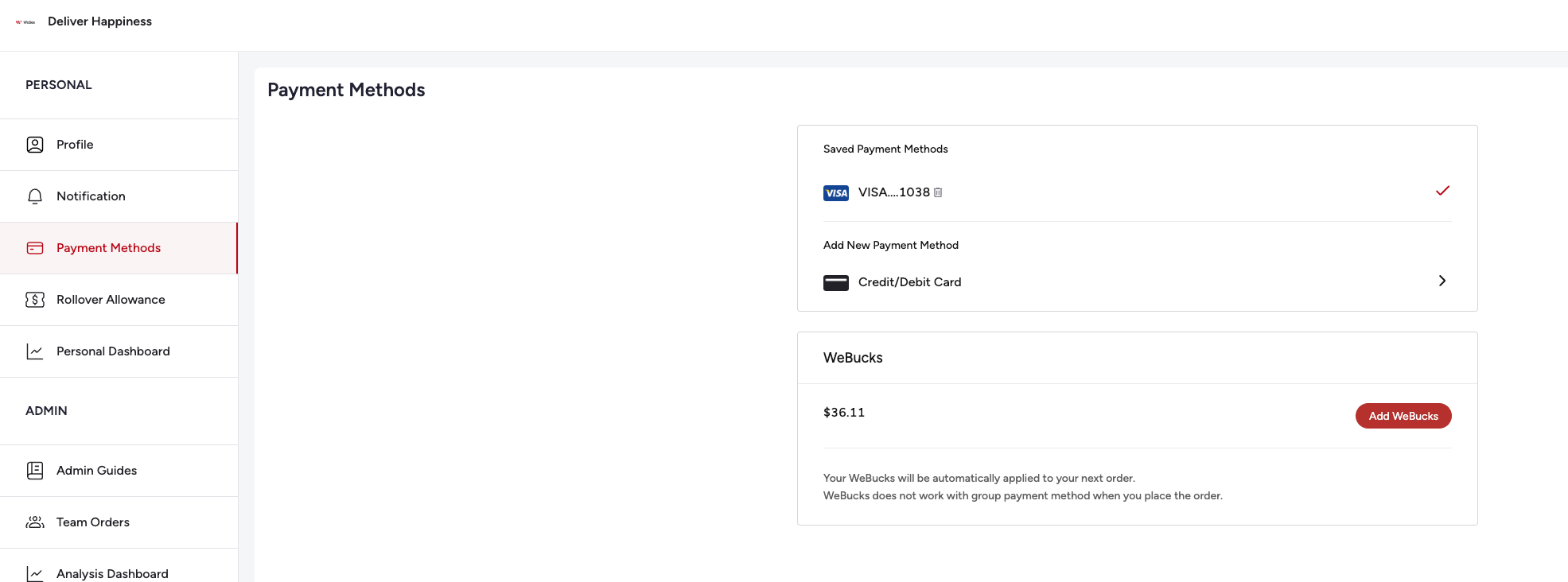
1. Go to **Account → Payment Method**
2. Remove the declined card
3. Re-add with correct information
Step 2: Check Card Status
Contact your card issuer if:
- Card is expired
- Card has insufficient funds
- Card is blocked or frozen
- Daily spending limit reached
- Card issuer flagged as suspicious transaction
**Prevention:** Call your bank before adding the card and let them know you’ll be making recurring meal purchases.
Step 3: Try a Different Card
1. Add an alternative credit/debit card
2. Set it as default payment method
3. Retry checkout
---
### Budget & Allowance Issues
---
### My budget balance is showing $0 or incorrect amount
**Symptoms:**
- Budget shows $0 but should have allowance
- Balance doesn’t match expected amount
- Allowance not refreshing
**Solutions:**
Step 1: Understand Your Budget Period
Your company sets one of four budget types:
| Budget Type | How It Works | When It Resets |
| --- | --- | --- |
| **Per Meal** | $X per individual meal | After each meal |
| **Daily** | $X per day (across all meals) | Midnight each day |
| **Weekly** | $X per week | Monday 12:00 AM |
| **Monthly** | $X per month | 1st of the month |
**Example:** If you have a $15 daily budget and already spent $15 on lunch, your dinner budget will show $0.
Step 2: Check If You’ve Already Ordered
1. Go to **My Orders** (sidebar)
2. Check **Today’s Orders**
3. If you already placed an order for this meal, budget may be consumed
**Fix:** Cancel the existing order (if before cutoff) to recover your budget, or use personal payment for additional orders.
Step 3: Rollover Balance
Your budget might be in rollover:
**Payment Priority:**
1. Rollover allowance (from previous unused budget)
2. Current period allowance
3. Credit card
**To see rollover:**
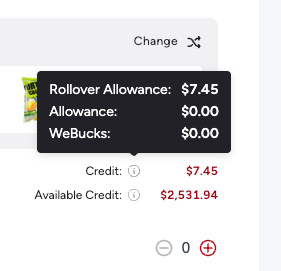
1. Go to checkout page
2. Look for “Rollover Balance” or “Rollover Allowance” section
3. This shows unused budget from previous periods
**Note:** Not all companies enable rollover — check with your admin.
Step 4: Budget Reset Timing
If your budget should have reset but didn’t:
- **Daily budgets** reset at the start of each new day
- **Weekly budgets** reset at the start of each week
- **Monthly budgets** reset at the start of each month
**If budget hasn’t reset when expected:**
1. Log out and log back in
2. Hard refresh the page (Ctrl+Shift+R or Cmd+Shift+R)
3. Contact support if issue persists
Step 5: Company Budget Settings Changed
Your admin may have:
- Reduced your budget amount
- Changed budget period type
- Temporarily suspended allowance
- Set specific days of the week (e.g., Mon-Fri only)
**Fix:** Contact your company admin or HR to verify budget settings.
---
#### Why is my order charging me when I have budget?
**Symptoms:**
- Have budget but still being charged
- Expected full coverage but paying out of pocket
- Confused about payment breakdown
**Solutions:**
**Understanding Payment Priority**
According to Account & Billing documentation, WeBox applies payments in this order:
1. **Rollover Allowance** — Unused budget from previous periods (if enabled)
2. **Current Period Allowance** — Your meal budget for this period
3. **Credit/Debit Card** — Your personal payment method
**Note:** WeBucks can be applied to reduce personal payment amounts when ordering over budget.
Step 1: Check Order Total vs. Budget
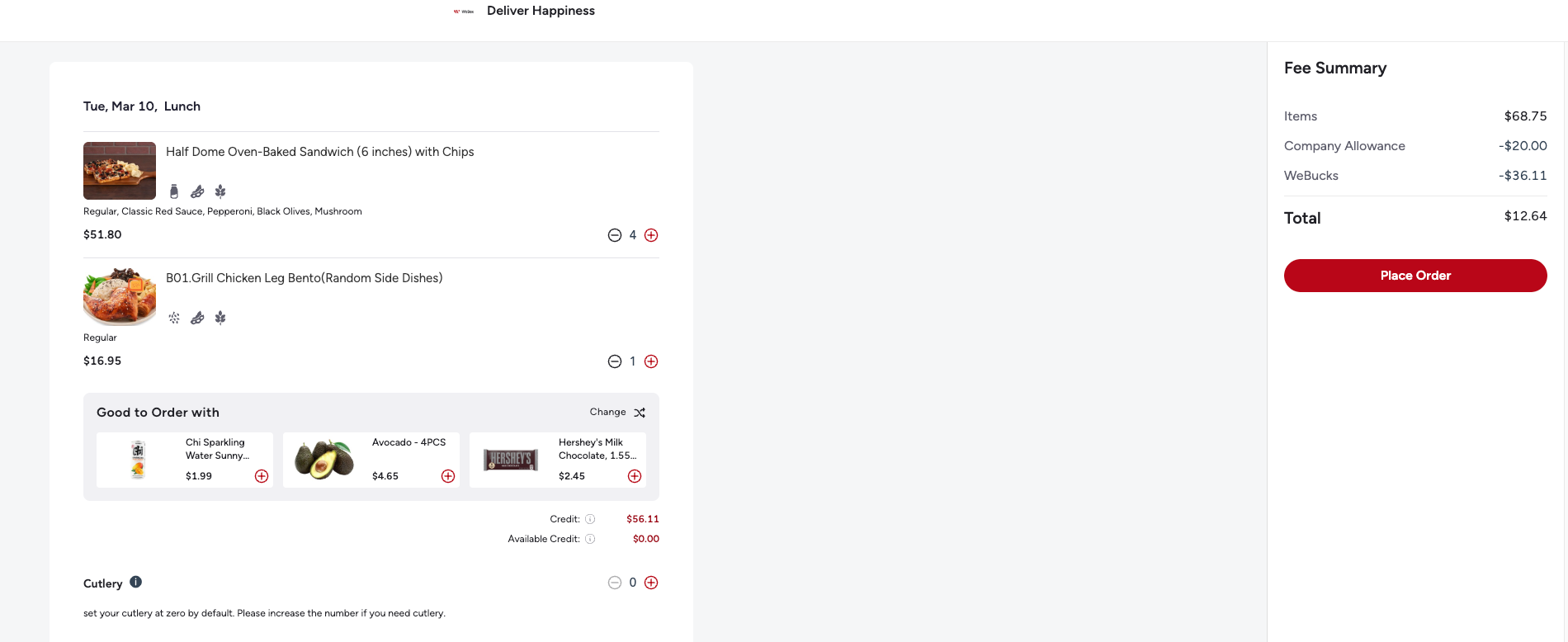
At checkout, verify:
- **Your allowance:** Amount covered by company (green box)
- **Order total:** Total cost of your order
- **Additional payment:** Difference you need to pay
**Example:**
If your order total exceeds your company allowance, you’ll see a breakdown showing the company-paid portion and the amount you need to pay personally.
**This is normal** — You ordered more than your allowance covers.
Step 2: Budget Type Confusion
**Per Meal Budget:**
- You get a set amount per meal (separate for lunch and dinner)
- Each meal has independent budget
**Daily Budget:**
- You get a set amount per day (shared across lunch and dinner)
- If you spend part of your daily budget on lunch, the remainder is available for dinner
**Check your budget type:** Look at the label on checkout page.
Step 3: Budget May Not Cover Full Order
Your company may have specific budget policies and limitations.
**This is a company policy decision** — not a system error.
**To confirm:** Contact your company admin about your specific budget policy and what it covers.
Step 4: Budget Already Used
If you see $0 balance:
1. Check if you already ordered for this meal period
2. Go to **My Orders → Today’s Orders**
3. If an order exists, budget was consumed
4. Cancel existing order (before cutoff) to recover budget
Step 5: Delivery Date Outside Budget Period
Ordering for a date outside your budget period:
- **Example:** Your weekly budget is Mon-Fri, but you’re ordering for Saturday
- Order won’t be covered by allowance
**Fix:** Change delivery date to a day covered by your budget, or use personal payment.
**Still confused?** Email [support@webox.com](mailto:support@webox.com) with a screenshot of your checkout page.
---
### Delivery Issues
---
### My order is late or not delivered
**Symptoms:**
- Delivery window passed (after 12:30 PM for lunch or 6:30 PM for dinner)
- No delivery notification received
- Order status shows “Out for delivery” but hasn’t arrived
**Solutions:**
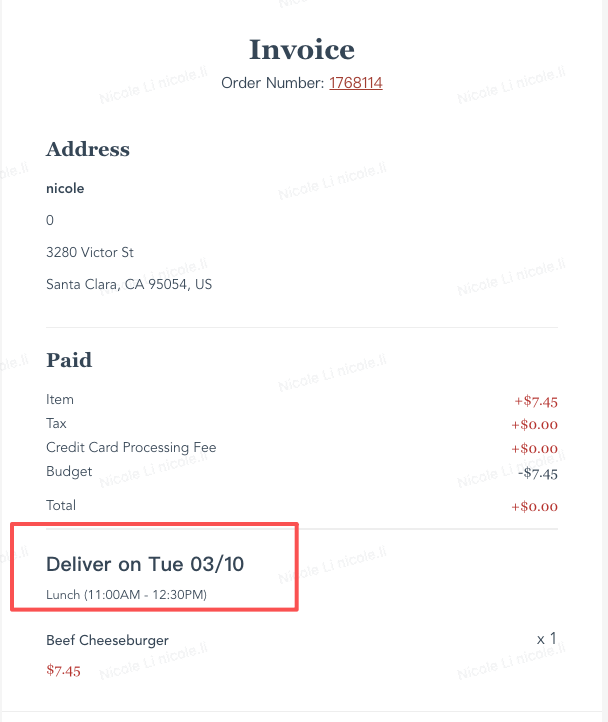
Step 1: Check Expected Delivery Window
**Standard delivery windows:**
- **Lunch:** 11:00 AM - 12:30 PM
- **Dinner:** 5:00 PM - 6:30 PM
**Your company may have custom windows:**
- Check your confirmation email for specific ETA
- Some companies have 15-30 minute custom windows
Step 2: Track Your Order
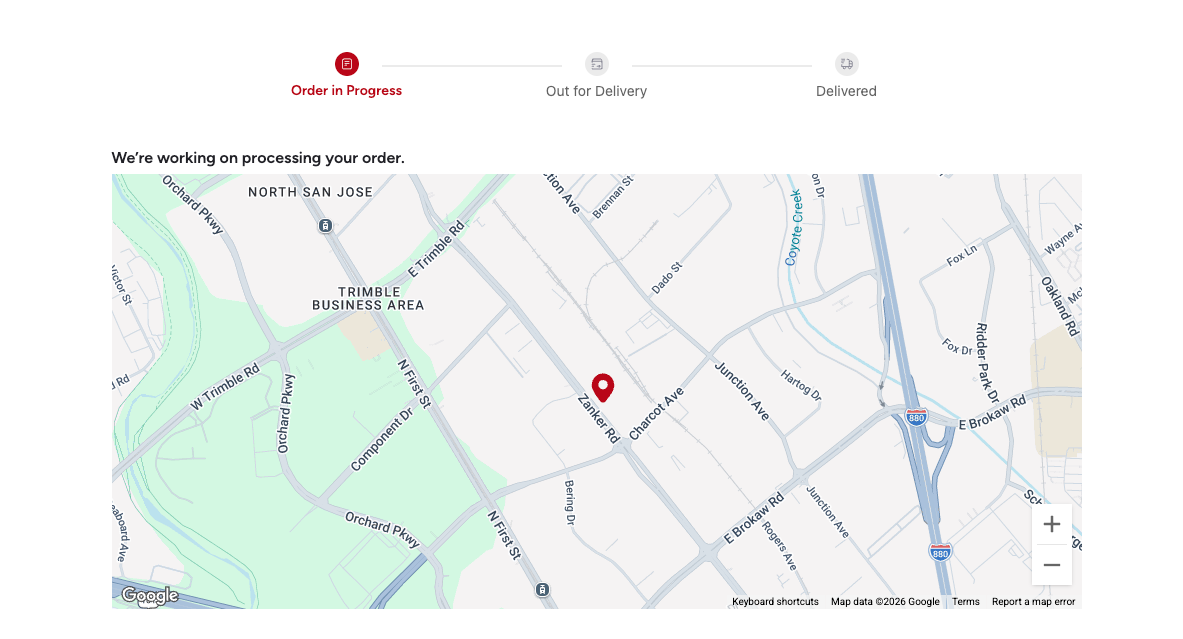
1. Go to **My Orders** in the sidebar
2. Find your order for today
3. Click **“Track”** to see real-time status
4. Check driver location and ETA
**Order Status Stages:**
- Order Confirmed
- Being Prepared
- Out for Delivery
- Delivered
Step 3: Check Email/SMS for Updates
Delivery updates are sent via:
- Email to your registered email address
- SMS to your phone number (if enabled)
- Slack notification (if integrated)
**Check your:**
- Email inbox (search “WeBox Delivery”)
- Text messages
- Spam/junk folders
Step 4: Contact Support Immediately
If your order is \>30 minutes late:
**Contact methods:**
- **Email:** [support@webox.com](mailto:support@webox.com) (subject: “Late Delivery - Order #\[number\]”)
- **Phone:** (408) 685-2000 (6:30 AM - 7:30 PM PST)
- **Live Chat:** Available on [webox.com](http://webox.com/)
**Provide:**
- Order number
- Expected delivery time
- Current time
- Delivery address
**WeBox Guarantee:**
- If meal is missed or late, replacement delivered within **45 minutes**
- Or full refund if replacement not desired
---
#### I received the wrong order or missing items
**Symptoms:**
- Order doesn’t match what you ordered
- Missing dishes from your order
- Someone else’s order delivered to you
**Solutions:**
Step 1: Verify Order Details
Before contacting support:
1. Open the order confirmation email
2. Or go to **My Orders** → Click on the order
3. Compare delivered items vs. order details
Step 2: Check Labels
Each meal is individually labeled per employee (as mentioned in company overview).
**If label shows wrong information:**
- You may have received someone else’s order
- Contact support immediately for exchange
Step 3: Report Immediately
**Time matters** — Report within **30 minutes of delivery** for fastest resolution:
**Contact support with:**
- Order number
- What’s wrong (missing items, wrong items, damaged)
- Photos of what you received
- Photos of labels (if applicable)
**Email:** [support@webox.com](mailto:support@webox.com)
**Phone:** (408) 685-2000
**Subject:** “Wrong Order - Order #\[number\]”
Step 4: Resolution Options
WeBox offers two solutions:
**Option A — Replacement Meal:**
- New meal delivered within 45 minutes
- Same dish or alternative (if original unavailable)
- No additional charge
**Option B — Refund:**
- Full refund processed
- Applied to original payment method
- Or company account (if paid by allowance)
**WeBox 100% Satisfaction Guarantee** — We’ll make it right.
---
#### My order is marked “Delivered” but I didn’t receive it
**Symptoms:**
- Received delivery notification but no food
- Status shows “Delivered” but nothing arrived
- Driver marked complete incorrectly
**Solutions:**
Step 1: Check Delivery Location
Driver may have left order in a different spot:
**Common delivery locations:**
- Reception desk
- Kitchen/break room
- Conference room (for group orders)
- Mail room
- Front door/lobby
**Action:**
1. Check your delivery instructions (in order details)
2. Walk through common areas
3. Ask reception or coworkers if they’ve seen the delivery
Step 2: Contact Driver
If order was just marked delivered (within 10 minutes):
1. Call support immediately — (408) 685-2000
2. They can contact the driver directly
3. Driver may still be nearby or have additional info
Step 3: Report Missing Delivery
If order cannot be located:
**Contact support immediately:**
- **Phone (fastest):** (408) 685-2000
- **Email:** [support@webox.com](mailto:support@webox.com)
- **Subject:** “Missing Delivery - Order #\[number\]”
**Provide:**
- Order number
- Delivery address
- Time marked as delivered
- Areas you’ve checked
**Resolution:**
- Replacement meal delivered within 45 minutes
- Or full refund
**Important:** Report within **30 minutes of “Delivered” status** for immediate action.
---
### Order Management Issues
---
### I can’t cancel my order
**Symptoms:**
- “Cancel” button is grayed out or missing
- Cancellation fails with error message
- Too late to cancel
**Solutions:**
**Understanding Cancellation Windows**
**Cancellation rules:**
- ✅ **Before 10:00 AM** (delivery day) — Cancellation available
- ⚠️ **8:00 AM - 10:00 AM** (Last-minute window) — Orders placed during this window may incur last-minute fee
- ❌ **After 10:00 AM** — Cancellation not permitted
**Special cases:**
- Some brands have earlier cutoffs (as early as 8:00 AM)
- Check order details for specific cutoff time

Step 1: Check Current Time vs. Cutoff
1. Note the current time
2. Check your order’s delivery date
3. If it’s after 10:00 AM on delivery day → Cannot cancel
**Example:**
- Order for: Thursday, March 9 (Lunch)
- Current time: Thursday, March 9, 10:30 AM
- **Result:** Too late to cancel
Step 2: Cancel Before Cutoff
If it’s before 10:00 AM on delivery day:
1. Go to **My Orders** (sidebar)
2. Find the order you want to cancel
3. Click **“Cancel Order”** button
4. Confirm cancellation in popup
5. You’ll receive cancellation confirmation email
**Budget recovery:**
- If order was paid by allowance → Budget will be restored
- If order was paid by credit card → Refund will be processed
Step 3: Late Cancellation (After Cutoff)
If you must cancel after 10:00 AM:
**Option A — Contact Support:**
1. Call **(408) 685-2000** immediately
2. Explain urgent situation
3. Support may be able to stop delivery if order hasn’t left kitchen
**Option B — Contact Support:**
If you need to cancel after cutoff, contact support to discuss options.
**Prevention tip:** Review your orders the evening before or early morning to cancel any unwanted orders before cutoff.
---
#### I want to modify my order after placing it
**Symptoms:**
- Ordered wrong dish
- Want to change quantity
- Need to update delivery instructions
**Solutions:**
**Understanding Order Modification**
To change your order after placing it, the standard approach is:
1. Cancel the existing order (if before cutoff)
2. Place a new order with correct items
Step 1: Cancel and Reorder (Before Cutoff)
If it’s **before 10:00 AM** on delivery day:
1. Go to **My Orders**
2. Click **“Cancel Order”** on the existing order
3. Return to menu and place a new order
4. Your budget will be restored
Step 2: Contact Support for Help
For modifications after placing order:
**Contact support:**
- **Phone:** (408) 685-2000 (fastest)
- **Email:** [support@webox.com](mailto:support@webox.com)
Support can advise on available options based on timing and order status.
Step 3: After Cutoff
If it’s **after 10:00 AM** on delivery day:
- Contact support at **(408) 685-2000** immediately
- Explain your situation
- Support will advise on available options based on order status
---
#### Automatic Orders is not working
**Symptoms:**
- Set up auto-order but no orders being placed
- Expected automatic order didn’t happen
- Auto-order feature seems broken
**Solutions:**
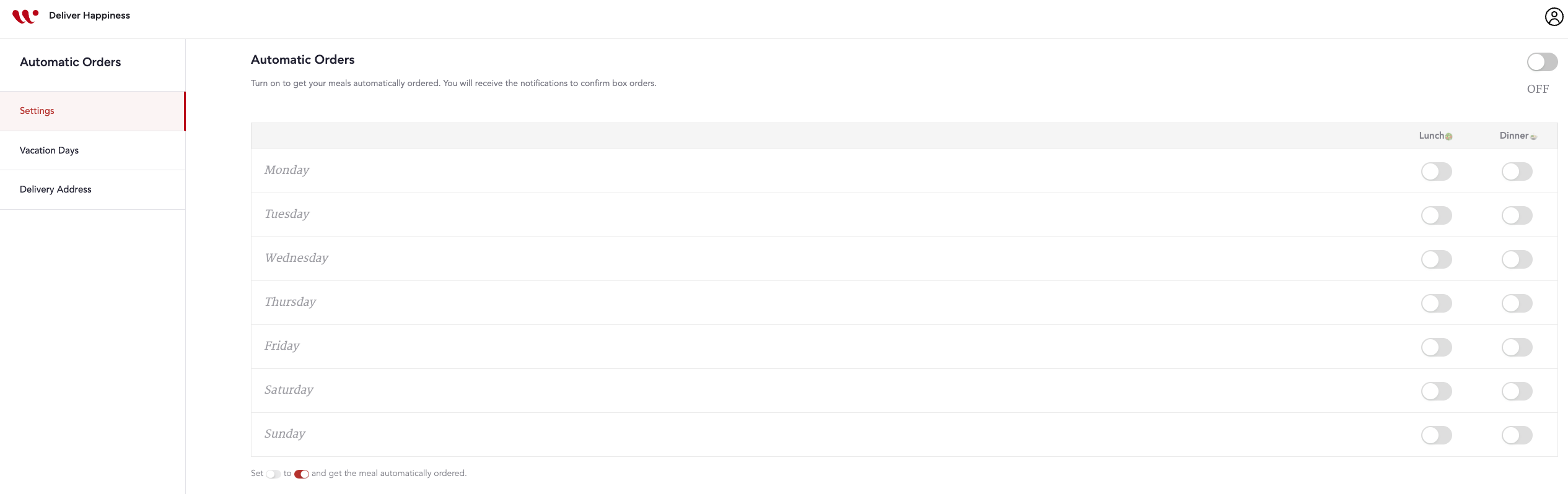
Step 1: Verify Auto-Order Configuration
1. Go to **Automatic Orders** (sidebar)
2. Check your settings:
- ✅ **Days enabled:** Which days of the week (Mon-Fri?)
- ✅ **Meal period:** Lunch, Dinner, or both?
- ✅ **Delivery address:** Correct office location?
- ✅ **Generate order:** Feature is toggled ON
3. Update if any settings are incorrect
Step 2: Check Vacation Days
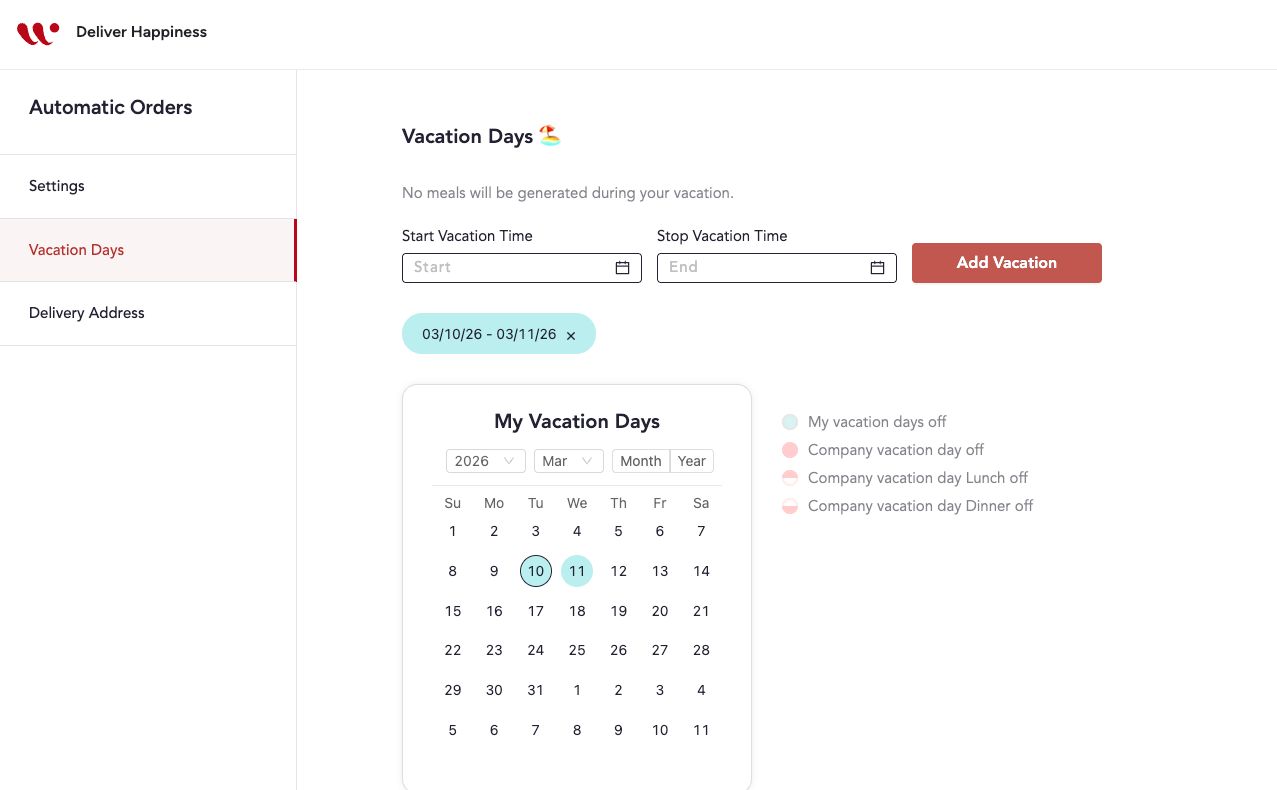
You may have vacation days scheduled:
1. In **Automatic Orders** page, scroll to **“Vacation Days”** section
2. If dates are listed, auto-order is disabled for those days
3. Remove vacation days if you want orders on those dates
Step 3: Favorites List is Empty
Auto-order generates orders **from your Favorites list**:
**If you have NO favorites:**
- Auto-order cannot place orders
- You must add dishes to favorites first
**Fix:**
1. Browse the menu
2. Click the **heart icon** on dishes you like
3. Return to **My Favorites** (sidebar) to verify they’re saved
4. Auto-order will select from your favorites list
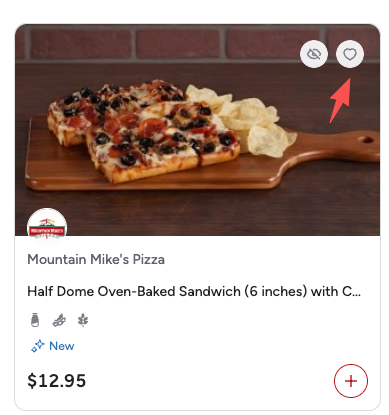
**Pro tip:** Add multiple dishes to favorites for variety in auto-orders.
Step 4: Budget Insufficient
Auto-order may fail if:
- Your budget is $0 or exhausted
- No payment method on file to cover overage
- Budget period has ended
**Fix:**
1. Verify budget is available (check checkout page for another date)
2. Add payment method to cover overages if needed
3. Contact admin if budget should have reset
Step 5: Check Existing Orders
Auto-orders won’t create duplicates:
- If you manually order first → Auto-order is skipped
**Check:**
1. Go to **My Orders**
2. Filter to the date in question
3. If you already have an order → Auto-order won’t create a duplicate
---
### Notification Issues
---
### I’m not receiving order notifications
**Symptoms:**
- No order confirmation emails
- No delivery update texts
- Missing tracking notifications
**Solutions:**
Step 1: Check Notification Preferences
Notifications may be disabled:
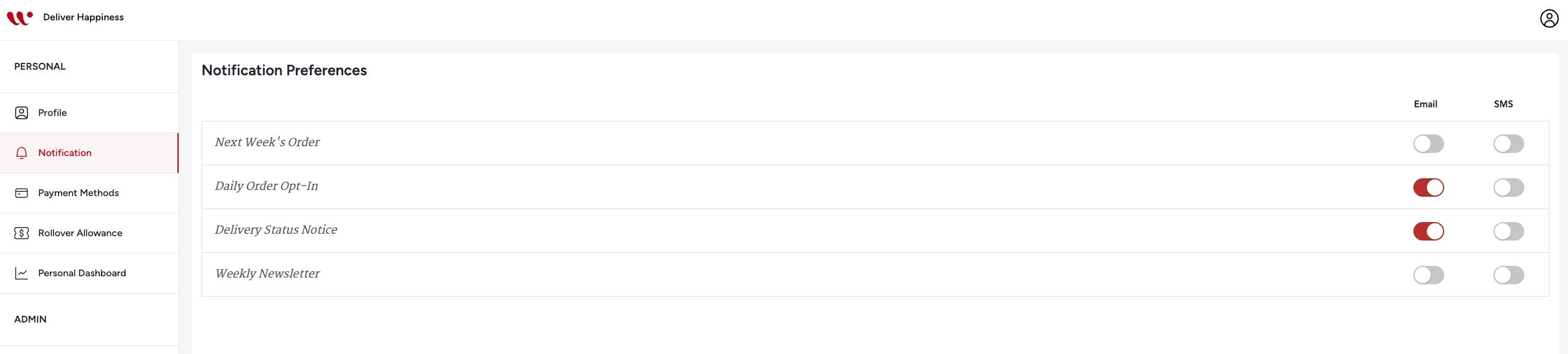
1. Go to **Account → Notification Preference**
2. Verify channels are enabled:
- **Email**
- **SMS Text** (if you want texts)
3. Verify notification types are enabled:
- Order confirmed
- Order being prepared
- Out for delivery
- Order delivered
- Order reminder
4. Save your changes if you made any updates
Step 2: Check Email Spam/Junk Folders
WeBox emails may be filtered:
1. Open your email client
2. Check **Spam**, **Junk**, **Promotions**, or **Updates** folders
3. Search for emails from WeBox (`@webox.com`)
4. Mark as “Not spam” to receive future emails in inbox
**Gmail users:**
- Check “Promotions” tab
- Drag WeBox emails to “Primary” tab
Step 3: Whitelist WeBox Email Addresses
Add WeBox email domain to your safe senders list:
- `@webox.com`
- `support@webox.com`
**Corporate email users:**
- Contact IT department to whitelist WeBox domains if emails are not arriving
Step 4: Verify Phone Number (For SMS)
If not receiving text notifications:
1. Go to **Account → Profile**
2. Check your phone number is correct and properly formatted
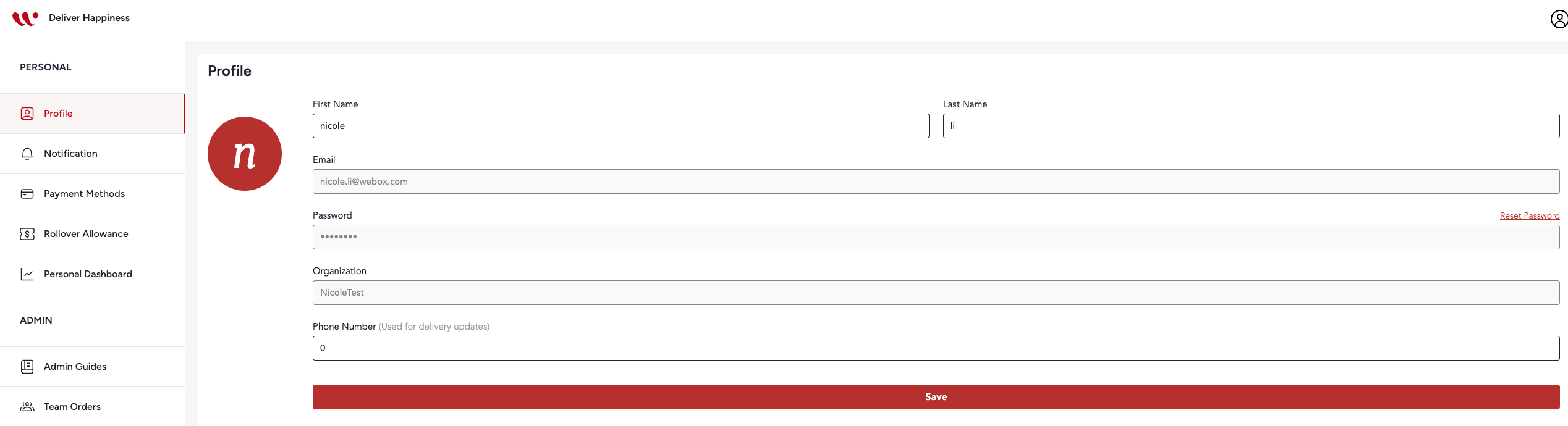
**Update if incorrect:**
1. Edit phone number
2. Click **"Save"**
3. Test by placing a new order
Step 5: Alternative Notification Method
If SMS continues to fail:
- Use email notifications instead
- Update preferences in **Account → Notification Preference**
Step 6: Order Confirmation Page
You can always verify your order:
1. After checkout, you’ll see confirmation screen
2. Order number and details displayed
3. Take a screenshot if you’re not receiving emails
**Still not receiving notifications?** Email [support@webox.com](mailto:support@webox.com) with:
- Your email address and phone number on file
- Notification types you’re missing
- Last time you successfully received a notification
---
### Quick Reference
---
### Common Issues & Solutions
| Issue | What It Means | Quick Fix |
| --- | --- | --- |
| **Cutoff time error** | After 10:00 AM on delivery day | Order for tomorrow instead |
| **Budget exceeded** | Order costs more than allowance | Add payment method or reduce order |
| **Invalid promo code** | Code expired or doesn’t apply | Check code spelling and contact support |
| **Item unavailable** | Dish no longer available | Choose alternative dish |
| **Payment failed** | Card declined | Check card details or try different card |
| **Address required** | No address selected | Select delivery address from dropdown |
| **No meals available** | Menu not published or office closed | Try different date or contact admin |
| **Session expired** | Inactive session, need to log in again | Log in with your credentials |
---
#### Important Times & Deadlines
| Action | Deadline | Notes |
| --- | --- | --- |
| **Same-day lunch orders** | Before 10:00 AM | Some partners have earlier cutoffs (as early as 8:00 AM) |
| **Same-day dinner orders** | Before 2:30 PM (varies) | Check brand-specific cutoffs |
| **Order cancellation (lunch)** | Before 10:00 AM delivery day | Full refund available |
| **Order cancellation (dinner)** | Before 2:30 PM delivery day | Full refund available |
| **Last-minute ordering window** | 8:00 AM - 10:00 AM | May incur extra fee |
| **Advance ordering** | Up to 7 days ahead | Based on company settings |
| **Report delivery issues** | Within 30 minutes of delivery | For fastest resolution |
#### Support Contact Methods
| Method | Best For | Availability | Response Time |
| --- | --- | --- | --- |
| **Phone: (408) 685-2000** | Urgent issues (late delivery, wrong order) | 6:30 AM - 7:30 PM PST | Immediate |
| **Email: [support@webox.com](mailto:support@webox.com)** | General questions, non-urgent issues | Email monitored regularly | Under 5 minutes |
| **Live Chat: [webox.com](http://webox.com/)** | Quick questions, order status | Check website for hours | Under 5 minutes |
- [Getting started](https://support.webox.com/en/kb/getting-started)
- [FAQs](https://support.webox.com/en/kb/faqs)
- [General](https://support.webox.com/en/kb/general)
- [Account](https://support.webox.com/en/kb/account)
- [Support](https://support.webox.com/en/kb/support)
[](http://www.webox.com)
[mailto:email@email.com](mailto:email@email.com)
Copyright © 2026, WeBox Inc